

Kiosk mode on Android: screen pinning or Lock Task Mode?
There are two ways to lock an app to the screen on Android, and the difference between them is decisive in the field:
- Screen pinning: A temporary mode the user turns on in settings and exits by pressing Back and Overview together. Fine for short supervised demos, not enough for an unattended kiosk in the field.
- Lock Task Mode: A mode in which apps allowed via the Device Policy Manager are put into a task lock. The status bar, notifications, home screen and recent apps can be hidden, and the user cannot leave the app. The app decides which system elements stay visible (e.g. clock, volume control).
To start Lock Task Mode without user confirmation, the app needs device owner rights on the device, or must be allow-listed by an MDM that holds those rights.
Main service page for this topic: self-service kiosk software
Device owner provisioning and remote management with MDM
- Resetting the device: Device owner rights can only be granted on a device whose setup wizard has not been completed or that has no accounts on it, so the device is reset to factory settings.
- Granting the rights: On a few devices, device owner is set via ADB; for large fleets, bulk provisioning is done by QR code or enterprise enrolment such as zero-touch.
- Applying policies: The Lock Task allow-list, disabling the status bar, blocking safe mode and factory reset, disabling USB debugging and scheduling system updates.
- Choosing an MDM: As the fleet grows, an off-the-shelf MDM/EMM solution or a lightweight project-specific management service is used. The MDM handles app distribution, remote reboot, location and battery status and policy changes without a site visit.
Technical features a kiosk app needs
- Auto-start on boot: The app opens directly as the default launcher (home) when the device powers on, and restarts itself after a crash.
- Keeping the screen awake: The screen does not go to sleep while the app is open; where needed, the screen switches off and on at set times and returns to a welcome screen when idle.
- Remote updates: New APK versions are installed silently via the MDM or device owner rights, and menu/content data is pulled from the server.
- Peripherals: USB barcode/QR scanners, thermal printers, card readers and serial devices (USB Host API and permission handling); Bluetooth printers, scanners and sensors. Payment terminals are integrated through the provider's SDK.
- Offline operation and monitoring: Local database, transaction queue, error and crash logs sent to the server, and a device heartbeat for online status.
For the overall scope of app development, see Android app development; for the full kiosk project (panel, integrations, process), see the kiosk software page.
Android vs Windows vs web (full-screen browser)
- Android (Lock Task Mode): Low hardware cost with off-the-shelf tablets and panels, fast boot, fleet management via MDM and strong locking. Limited with older serial devices whose drivers exist only for Windows.
- Windows (Assigned Access / Shell Launcher): Broad driver support, compatibility with serial ports and payment/printer devices, .NET desktop apps. Licensing, update management and hardware costs are higher.
- Web (full-screen browser): The app runs as a web page or PWA opened in browser kiosk mode. Updates go live instantly from the server and it is platform-independent; however, access to hardware such as printers and card readers stays within browser limits and usually needs a local bridge service.
In practice the choice is driven by the peripherals to be connected: Android for devices with an Android SDK or USB/Bluetooth support, Windows for devices that only have Windows drivers, and a web-based solution for information screens with few hardware dependencies and frequently changing content.
Experience with full-screen tablet apps
Hakan Sevimoğlu develops Android tablet apps in Kotlin: FaceMorph AI (a tablet-based 3D face analysis app) and NSİ ECDIS (a tablet app for maritime training) were designed to be full-screen, touch-first and to stay open for long periods. The software of the PPE dispensing kiosk running live at Brisa facilities, unlocked with a staff card, and his vending machine software directly meet the needs of a field kiosk with a card reader, vending machine API and web admin panel. If the hardware side is needed too, it can be handled together under electronic product development.
What I offer
Lock Task Mode
Users cannot leave the app
Device owner setup
Device provisioning via ADB or QR
MDM remote management
Policies, distribution and remote reboot
Auto-start
App reopens on boot and after crashes
Silent updates
New APKs installed without a site visit
USB and Bluetooth
Printer, barcode and card reader support
Technologies I use
Example projects
A selection of live projects serving real users.
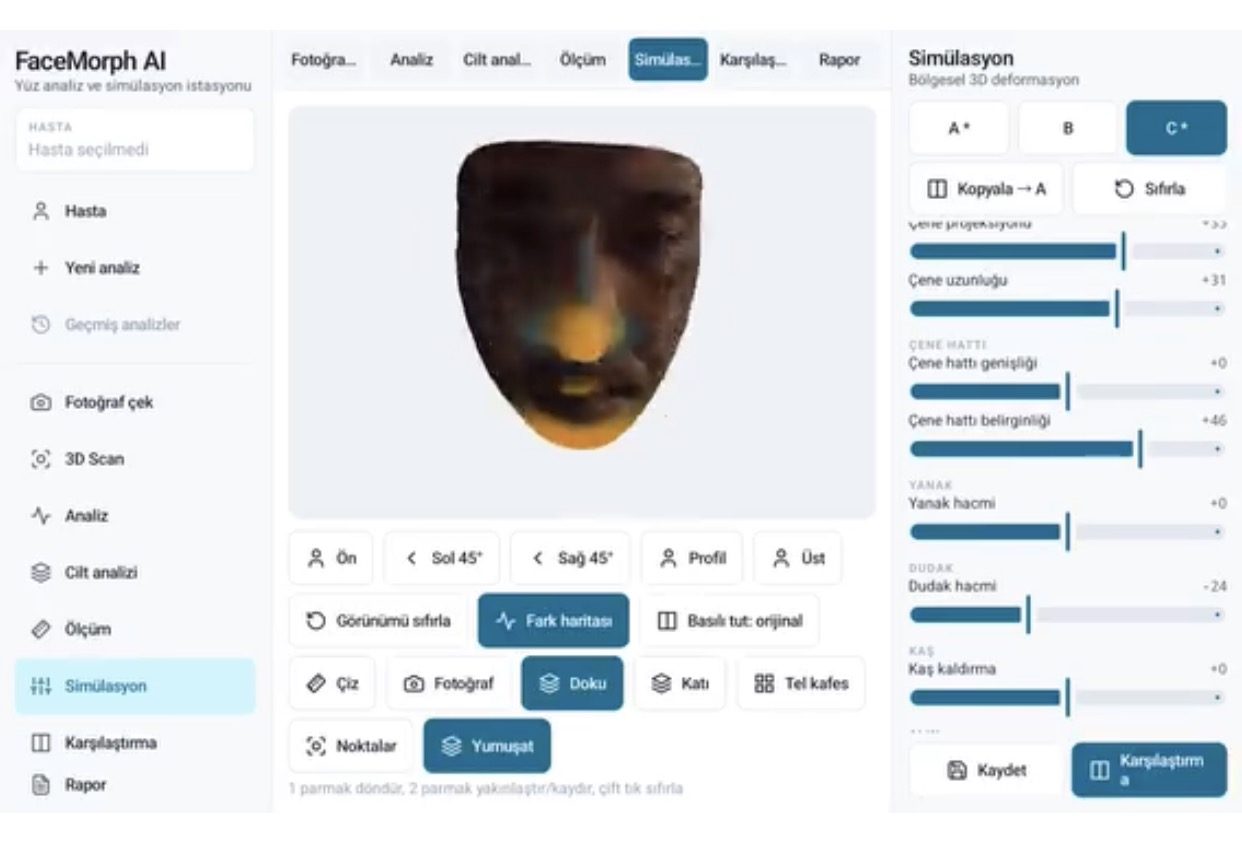
FaceMorph AI — 3D Face Analysis & Aesthetic Simulation
3D face analysis, measurement, filler/Botox/lifting simulation, before/after comparison and PDF reports for aesthetic clinics.
View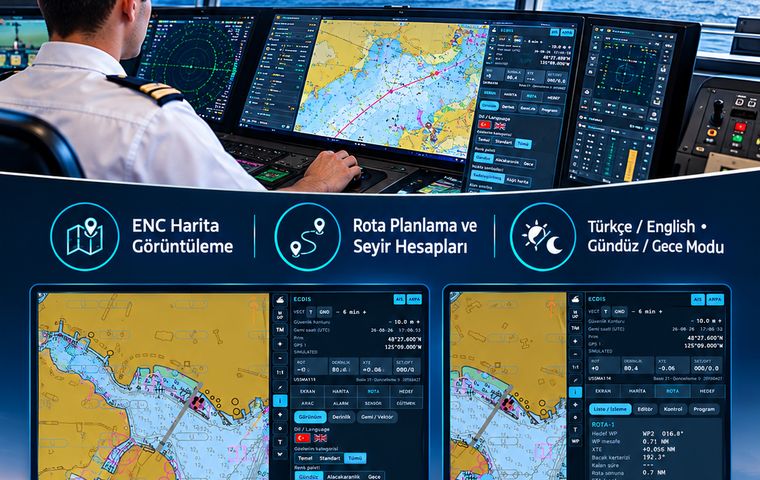
NSİ ECDIS — Turkish-Made ECDIS Training Simulator
ECDIS training simulator for maritime high schools and faculties: ENC charts, route planning, navigation calculations, Turkish/English and day/night modes.
ViewISG Virtual Warehouse Dispatch Assistant
Occupational safety ERP with REST API and BI dashboard.
ViewHow we work
Free intro call
We clarify needs, existing systems and goals together.
Quote & roadmap
Scope, technology, timeline and budget within 24 hours.
Staged development
Weekly demos and a live test environment.
Launch & support
Go-live, training and ongoing maintenance.
Free pre-analysisThe first meeting and roadmap are completely free, with no obligation.
Staged delivery and approvalYou review each module on a test environment before we move on.
Written scope and rightsScope, delivery and source code rights are defined in the contract.
Frequently asked questions
How do you lock an Android tablet to a single app?
The app is installed with device owner rights and put into Lock Task Mode. In this mode the home screen, recent apps, notifications and status bar can be hidden, and the user cannot leave the app. Screen pinning also exists for short-term use, but the user can turn it off.
What is device owner?
Device owner is an Android management role that gives an app or MDM the right to apply device-wide policies. Kiosk locking, silent app installation and blocking safe mode and factory reset are done with this right. It can only be assigned to devices that have been reset or have no accounts added.
Can the app be updated remotely in kiosk mode?
Yes. The device owner app or MDM can install a new APK version without asking the user. Data such as menus, prices and content is pulled from the server by the app, so it can be changed without an APK update.
Is an MDM required for a kiosk app?
No. On a small number of devices, locking and updates can be managed by granting device owner rights to the app itself. As the number of devices grows, an MDM makes app distribution, policy changes and remote monitoring easier.
Can printers and barcode scanners be connected to an Android kiosk?
Yes. USB barcode scanners mostly act like a keyboard; thermal printers and card readers are integrated via the USB Host API or Bluetooth, using the manufacturer's Android SDK where available. Payment terminals use the SDK provided by the payment provider.
Should I choose an Android or a Windows kiosk?
Android is the better fit if the devices to be connected support Android and you want low hardware cost with remote fleet management; Windows suits setups using serial port, printer or payment devices that only have Windows drivers. For information screens with few hardware dependencies, a full-screen web solution is also an option.